Zebra DS2208 With Shopify POS: Compatibility Guide
See how the Zebra DS2208 connects to Shopify POS on iPad and Android, which mode to use, and what to check when scanning fails.
- Written by
- Clayton Wingfield
- Reviewed by
- Clayton Wingfield
- Originally published
- Jul 18, 2026
- Last reviewed
- Jul 18, 2026
Quick verdict
The Zebra DS2208 is officially supported for Shopify POS on compatible iPad and Android tablets. Use the POS Hub for the clearest fixed-counter deployment; use direct HID only after validating the tablet port, power, and workflow.
- Best for
- Fixed retail counters that need wired 1D and 2D scanning with a standardized tablet setup.
- Avoid if
- Staff need cordless mobility or the store cannot verify its tablet, cable, and connection path before purchase.
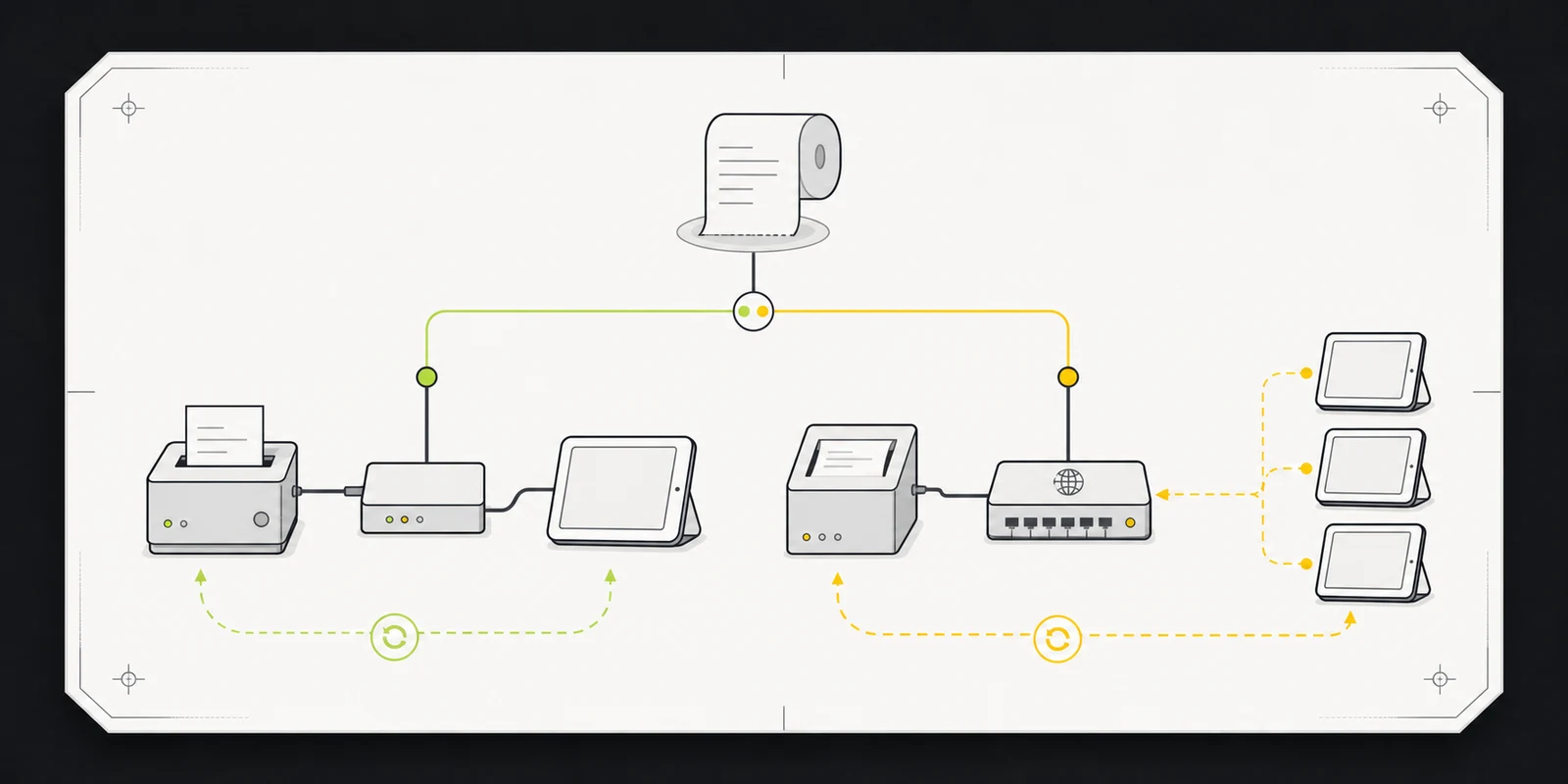
Yes. Shopify currently lists the Zebra DS2208 as a supported wired scanner for Shopify POS on compatible iPad and Android tablets. The connection method matters, though: the Shopify POS Hub, the Android-only Shopify POS Tablet Stand, and direct USB in HID mode have different requirements.
The safest default for a fixed checkout is the POS Hub. Direct HID can remove the Hub from the setup, but it makes the scanner behave like a keyboard and requires more care around the tablet port, scanner mode, and inventory workflow.
This is a researched compatibility guide based on current Shopify and Zebra documentation. Devicefield has not tested this scanner-and-tablet combination directly; see the Devicefield review methodology for how researched coverage is labeled.
Compatibility at a glance
- Shopify POS Hub: Supported with compatible iPad and Android tablets. Shopify recommends this path for the most reliable USB setup.
- Shopify POS Tablet Stand (USB-C): Supported with compatible Android devices only. Do not assume the stand makes the scanner compatible with an iPad.
- Direct USB in HID mode: Supported by Shopify for compatible iPad and Android tablets. The scanner enters barcodes as keyboard input and does not require the POS Hub.
- Wireless use: Not supported by the DS2208 itself. It is the corded model in Zebra's DS2200 family. Consider the DS2278 or another supported cordless scanner when staff need to move away from the counter.
- Barcode formats: The DS2208 is a 1D and 2D imager, so it can read common linear product codes and supported two-dimensional codes.
Shopify's current DS2208 instructions are the best source for the connection matrix. The scanner appears in Shopify's supported hardware list across North America, much of Europe, Australia, New Zealand, and Singapore, but purchasing availability varies by region.
Choose the connection before buying accessories
POS Hub: the fixed-counter default
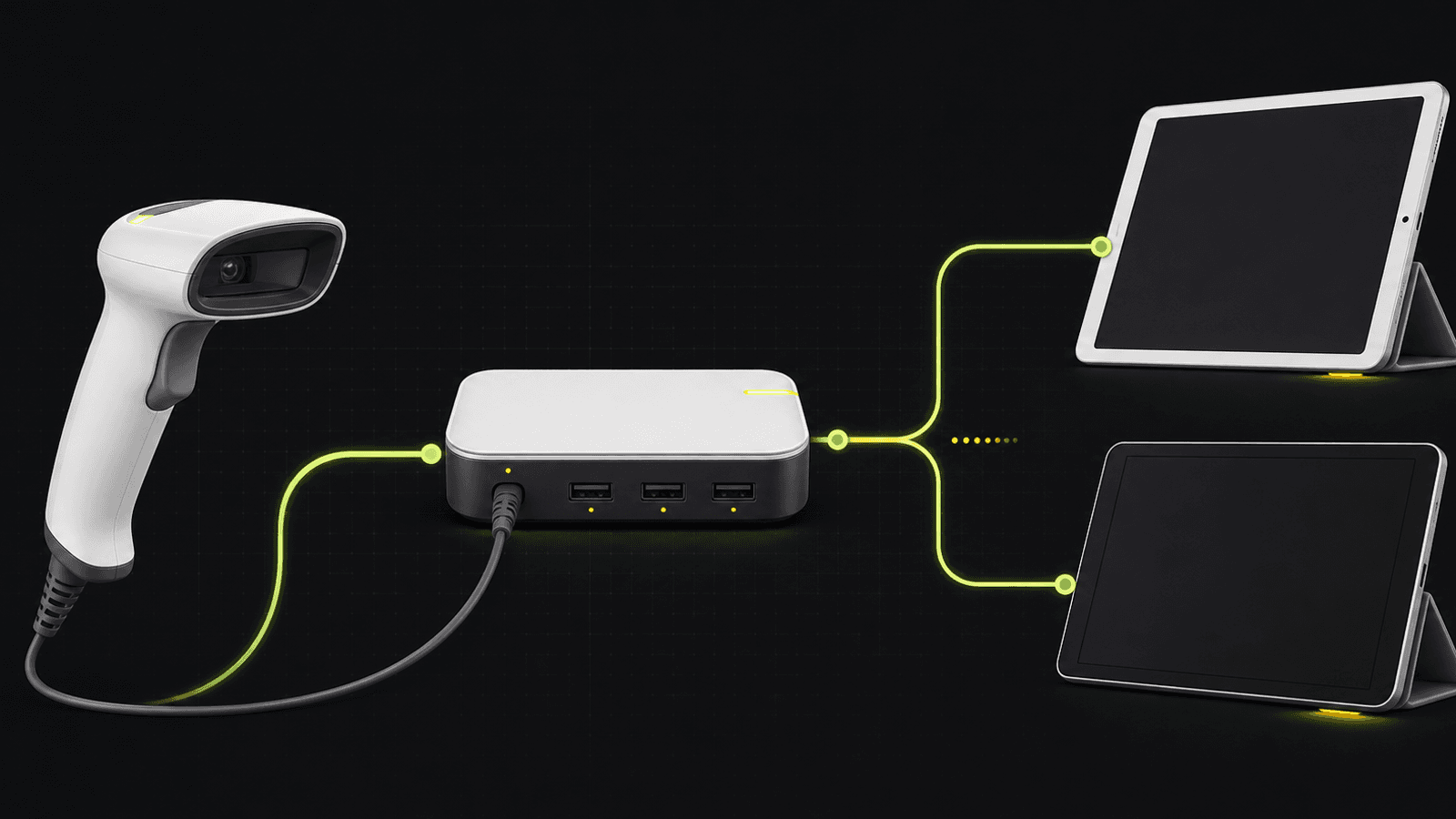
Use the POS Hub when the scanner will stay at a checkout and you want Shopify's recommended wired path. The Hub can connect the scanner alongside other supported USB peripherals and provides power from its own adapter.
The tablet plugs into the dedicated tablet port on the bottom of the Hub. The other USB-C port is for peripherals, not the tablet. Shopify also says to connect the POS Hub directly to the tablet rather than through another USB hub.
For iPad deployments, check the live POS Hub compatibility list before ordering. As verified on July 18, 2026, the Hub requires iPadOS 18 or later, and Shopify recommends iPadOS 26 or later for the most reliable operation. That Hub-specific requirement is stricter than Shopify POS's broader operating-system minimum.
Older supported iPads with Lightning ports need the dedicated POS Hub Lightning cable. Shopify warns that USB-C-to-Lightning adapters can cause intermittent pairing and connection problems.
Direct USB HID: fewer boxes, more variables
HID means Human Interface Device. In this mode, the DS2208 behaves like a keyboard: scanning a code sends its characters to the active field. Shopify documents direct HID as compatible with iPad and Android tablets and says it does not require the POS Hub.
This path can suit a simple counter with one scanner, but confirm the tablet's physical port, data support, and power behavior before buying an adapter. Shopify's direct-HID guidance is less device-specific than its POS Hub list. Treat a generic USB adapter as an item to validate, not as proof that the whole setup will work.
HID is also the relevant mode when using the scanner with Stocky in a browser. Application mode is the better fit for normal Shopify POS checkout because Shopify can handle the scan as barcode data and add the matching item to the cart.
Shopify POS Tablet Stand: Android only for this scanner
The USB-C Shopify POS Tablet Stand can connect the DS2208 to compatible Android devices. Shopify's DS2208 documentation does not list this stand as an iPad connection path. If the store uses an iPad, plan around the POS Hub or a verified direct-HID connection instead.
What the scanner can and cannot do in Shopify
At checkout, the DS2208 can scan a product barcode so Shopify POS can add the matching item to the cart. Shopify's barcode scanner overview also documents two limits that can surprise a store during deployment:
- Scanning in Shopify POS does not create products or add products directly to inventory. Stocky inventory workflows require an HID scanner.
- When a variant barcode is scanned, Shopify can show the master product in search results and require the cashier to choose the specific variant.
Test those two workflows with the store's real catalog before rolling the scanner to every register. A successful scan beep only proves the scanner decoded a symbol; it does not prove Shopify found the intended product, variant, or inventory action.
Required equipment and preflight checks
Before setup, gather:
- A Zebra DS2208 and the correct Zebra USB interface cable.
- A compatible iPad or Android tablet running a current supported operating system.
- The current Shopify POS app.
- Either a Shopify POS Hub with its power adapter and correct tablet cable, a compatible Android Shopify POS Tablet Stand, or a verified direct-USB data connection.
- A known product already assigned a unique barcode in Shopify.
- The official Shopify configuration barcodes available in the DS2208 help article.
Do not print a configuration barcode from an unofficial guide. Scanner modes can change what the host receives, and an outdated barcode can leave the device working electrically but speaking the wrong interface to Shopify.
Setup sequence with the Shopify POS Hub
- Power the POS Hub and connect its tablet cable to the port on the bottom of the Hub.
- Connect the other end directly to a compatible tablet. Do not place another hub between them.
- In Shopify POS, open the connectivity screen, choose Add, then Barcode scanner, then Zebra.
- Connect the DS2208's USB cable to a USB port on the POS Hub.
- Scan the configuration barcode shown by Shopify POS, then choose Connect.
- Scan a known catalog item and confirm the correct product and variant behavior.
- Test a second workflow, such as product search or the inventory task staff actually use.
Record the tablet model, operating-system version, Shopify POS version, Hub firmware, scanner mode, and cable type for each register. That short deployment record makes later troubleshooting much faster.
Troubleshooting decision tree
The scanner has no lights or beep
Reconnect the scanner cable at both ends. Test the DS2208 on another supported host, such as a computer, to separate a scanner-or-cable problem from a tablet-or-Hub problem. Zebra's DS2200 support instructions use a text document as a basic test: in keyboard mode, a successful scan should type the barcode value into the active document.
The scanner powers on but Shopify does not react
Confirm whether the scanner is in Application mode or HID mode and whether that mode matches the task. In Shopify POS, review the official app-permission checklist. Shopify currently calls for Local Network, Bluetooth, Allow Cross-Website Tracking, and Background App Refresh on iOS; Location and Camera on both platforms; and Nearby Devices plus disabled app-pausing on Android.
If the Hub identifies an HID scanner as a keyboard, open the connected device in Shopify POS and change its device type to Barcode scanner.
The Hub disconnects or will not pair
Verify that the tablet is on Shopify's current Hub device list and that an iPad is running at least iPadOS 18. Check that the tablet cable uses the dedicated bottom port, the Hub has power, and no second USB hub is in the path. For a Lightning iPad, use Shopify's dedicated Lightning cable rather than an adapter.
Then update Shopify POS, check the Hub firmware, reconnect the USB device, and restart both the Hub and tablet. Shopify's documented restart step removes Hub power for 10 seconds before reconnecting it.
Scans type the wrong characters
HID output follows a keyboard layout. Zebra advises matching the scanner's USB country keyboard setting to the host's keyboard language when transferred characters are inaccurate. Use Zebra's current product reference guide rather than guessing a country code.
Shopify POS works, but Stocky does not
Switch the scanner to HID or Keyboard mode using the barcode in Shopify's DS2208 help article. Application mode is intended for normal Shopify POS transactions, while Stocky uses keyboard-style scanner input.
Nothing else resolves the problem
Factory reset is the most disruptive scanner step. Shopify's current recovery sequence is to scan Set Factory Defaults and then Symbol Native API for Shopify POS Application mode. For Stocky, use the USB keyboard HID barcode instead. Use the live Shopify page for those barcodes; do not rely on screenshots saved from an older guide.
Best fit and alternatives
The DS2208 fits a fixed checkout where a cable is acceptable, 1D and 2D scanning are required, and the store can standardize the tablet, connection, and scanner mode. A POS Hub is the clearest deployment choice when multiple supported USB peripherals share the counter.
Avoid the DS2208 when staff need to scan across a stockroom or sales floor, when cable routing would interfere with checkout, or when the tablet-and-adapter combination cannot be verified before purchase. For occasional low-volume scans, the tablet camera may be enough. For cordless scanning, compare Shopify's currently supported wireless models and account for charging, pairing, and range management.
For more deployment planning, browse Devicefield's Barcode & Inventory coverage. Compatibility details can change quickly, so the Devicefield editorial policy recommends verifying material requirements with the vendor before purchasing or rolling out hardware.
FAQ
Does the Zebra DS2208 work with Shopify POS on iPad?
Yes. Shopify supports the DS2208 on compatible iPads through the Shopify POS Hub and documents direct USB HID as another iPad path. The POS Hub requires a listed iPad running iPadOS 18 or later as verified on July 18, 2026.
Does the DS2208 need the Shopify POS Hub?
Not always. Shopify supports direct USB in HID mode without the Hub. The Hub remains Shopify's recommended wired setup and provides a clearer compatibility list, power, and ports for multiple USB peripherals.
Can the DS2208 scan QR codes?
The DS2208 is a 1D and 2D imager. Whether a particular QR code triggers a useful Shopify action depends on the workflow and the data encoded in it; scanner capability alone does not guarantee application support.
Why does the DS2208 work in checkout but not in Stocky?
The likely issue is scanner mode. Shopify POS checkout normally uses Application mode, while Stocky expects HID or Keyboard mode. Change modes using Shopify's current DS2208 configuration barcode.
Is the Zebra DS2208 wireless?
No. The DS2208 is corded. Zebra's DS2278 is the cordless model in the same family, but verify Shopify's current regional support and connection requirements before buying.
Compatibility notes
Systems, accessories, and constraints
Shopify documents the DS2208 with the POS Hub on compatible iPad and Android tablets, the USB-C Shopify POS Tablet Stand on compatible Android devices only, and direct USB HID on compatible iPad and Android tablets. POS Hub use on iPad requires a listed device on iPadOS 18 or later as verified July 18, 2026.
Testing methodology
How this article was evaluated
Reviewed current Shopify DS2208, barcode-scanner, supported-hardware, POS Hub, and hardware-store documentation; cross-checked scanner capabilities, cabling, keyboard mode, and recovery steps against current Zebra product and support documentation. Compared the documented paths against current search results and a Shopify Community question showing iPad compatibility confusion.
Known limitations
What this guide could not verify
This is a documentation-based compatibility guide. Devicefield did not connect or test a DS2208, POS Hub, tablet, or Stocky workflow. Direct-HID adapter and power behavior can vary by tablet and was not verified hands-on. Availability and supported-device lists can change.
Sources
Documentation and references
- Shopify Help Center: Zebra DS2208 USB barcode scanner - Supports connection methods, Shopify POS setup, permission requirements, scanner modes, troubleshooting, and factory-reset recovery.
- Shopify Help Center: Barcode scanners - Supports official scanner list, checkout behavior, inventory and variant limitations, and Application versus HID mode.
- Shopify Help Center: Shopify POS Hub - Supports Hub ports, cabling, supported peripherals, compatible tablets, iPadOS requirement, and Hub troubleshooting.
- Shopify Help Center: Where to buy Shopify POS compatible barcode scanners - Supports regional DS2208 availability and broader Shopify POS device requirements.
- Shopify Hardware Store: Zebra 2D USB Barcode Scanner with Stand (DS2208) - Supports wired USB configuration, included items, 1D and 2D capability, and iOS compatibility through the POS Hub.
- Zebra: DS2200 Series 1D/2D Scanners - Supports the DS2200 family relationship and 1D/2D imaging capability.
- Zebra: DS2200 Series Scanner Support - Supports required cable, first-connection test, factory defaults, text-field verification, and keyboard-language troubleshooting.
- Zebra DS2208 Digital Scanner Product Reference Guide - Primary product reference for USB interface and scanner configuration details.
Devicefield checklist
Make the next hardware decision with fewer surprises.
Get practical buying notes, compatibility checks, and new troubleshooting guides.
Frequently asked questions
Does the Zebra DS2208 work with Shopify POS on iPad?
Yes. Shopify supports the DS2208 on compatible iPads through the Shopify POS Hub and documents direct USB HID as another iPad path. The POS Hub requires a listed iPad running iPadOS 18 or later as verified on July 18, 2026.
Does the DS2208 need the Shopify POS Hub?
Not always. Shopify supports direct USB in HID mode without the Hub. The Hub remains Shopify's recommended wired setup and provides a clearer compatibility list, power, and ports for multiple USB peripherals.
Can the DS2208 scan QR codes?
The DS2208 is a 1D and 2D imager. Whether a particular QR code triggers a useful Shopify action depends on the workflow and encoded data; scanner capability alone does not guarantee application support.
Why does the DS2208 work in checkout but not in Stocky?
The likely issue is scanner mode. Shopify POS checkout normally uses Application mode, while Stocky expects HID or Keyboard mode. Change modes using Shopify's current DS2208 configuration barcode.
Is the Zebra DS2208 wireless?
No. The DS2208 is corded. Zebra's DS2278 is the cordless model in the same family, but verify Shopify's current regional support and connection requirements before buying.